
Sign in to ZingBot
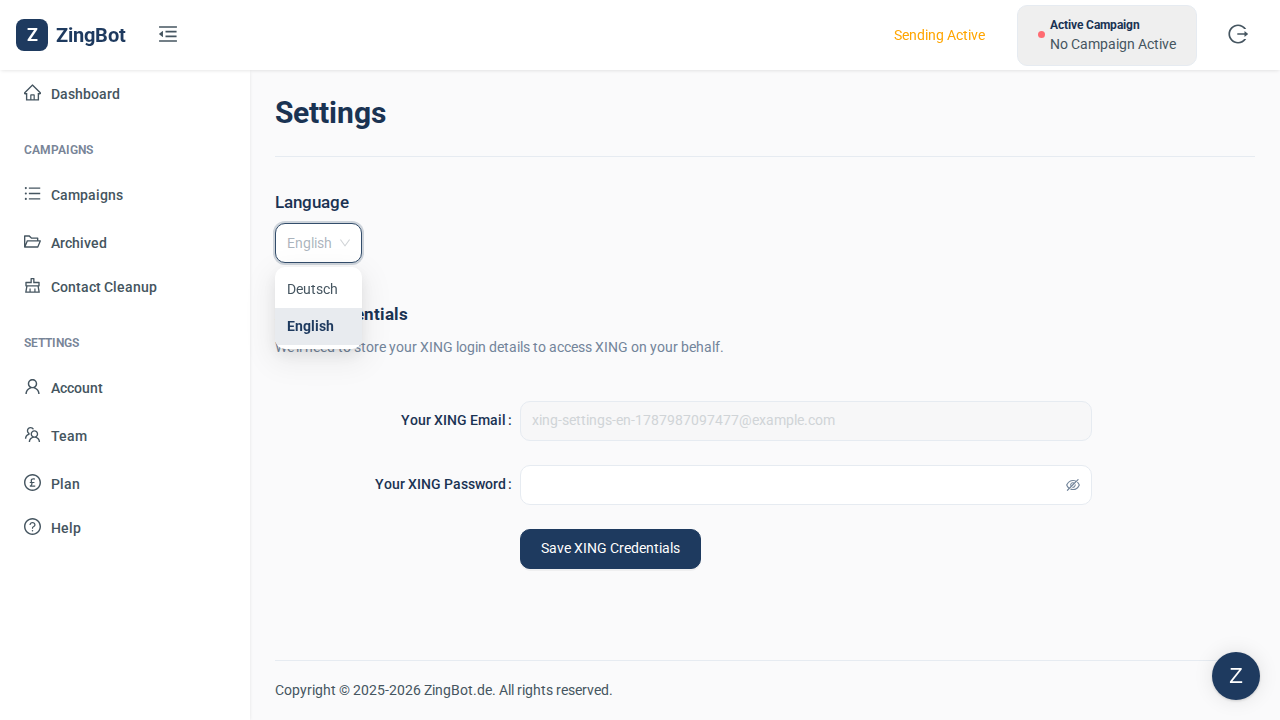
You sign in without a password: ZingBot emails you a sign-in link, and one click opens your account.
Open account settings
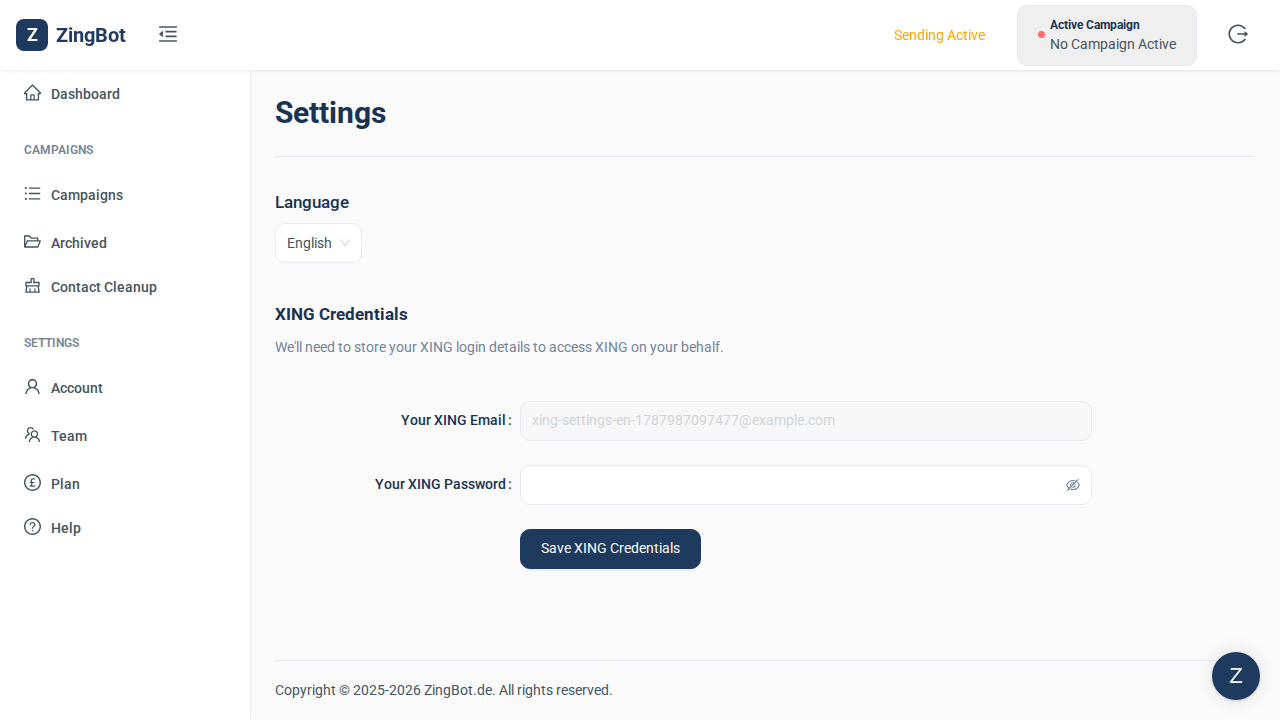
Settings → Account holds the XING credentials ZingBot signs in with. This is where you store a new password after changing it on XING.
Enter your current XING password
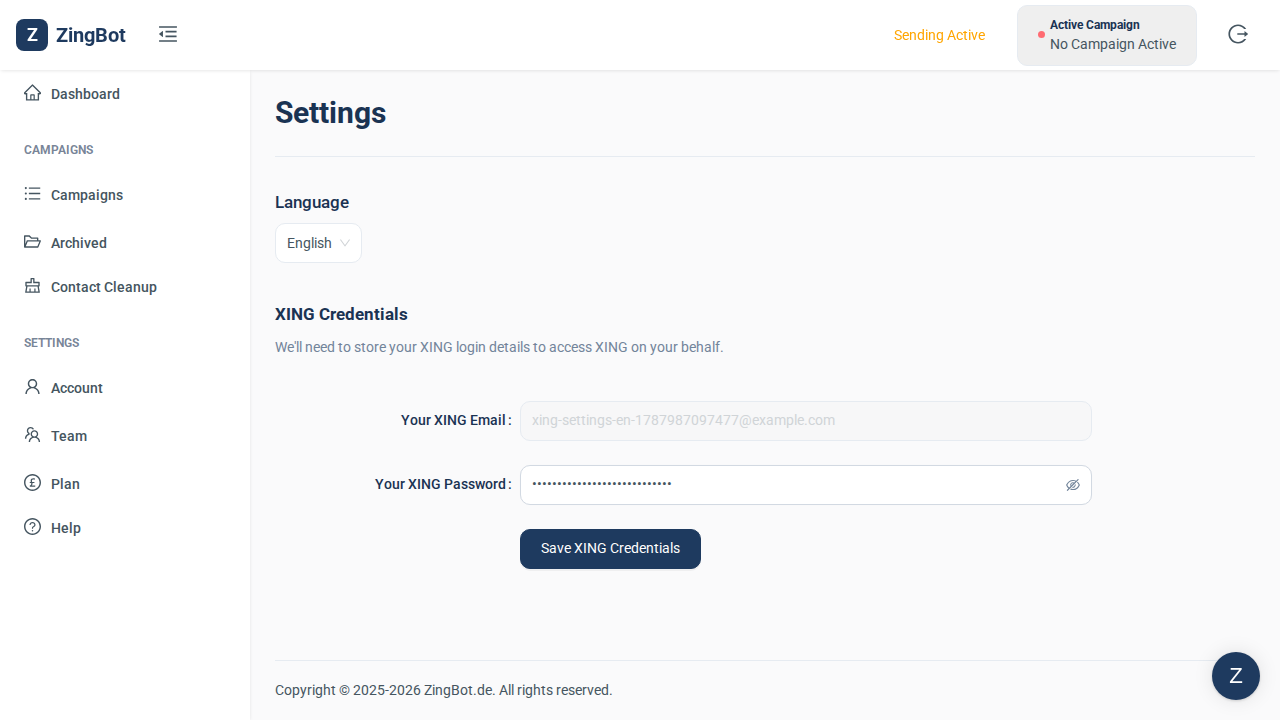
Enter the password you can currently sign in to XING with. The stored XING email address cannot be changed here — if you need to use a different XING account, please contact support. If XING also asks for a security check, answer it once directly on XING; automation cannot do that for you.
Save
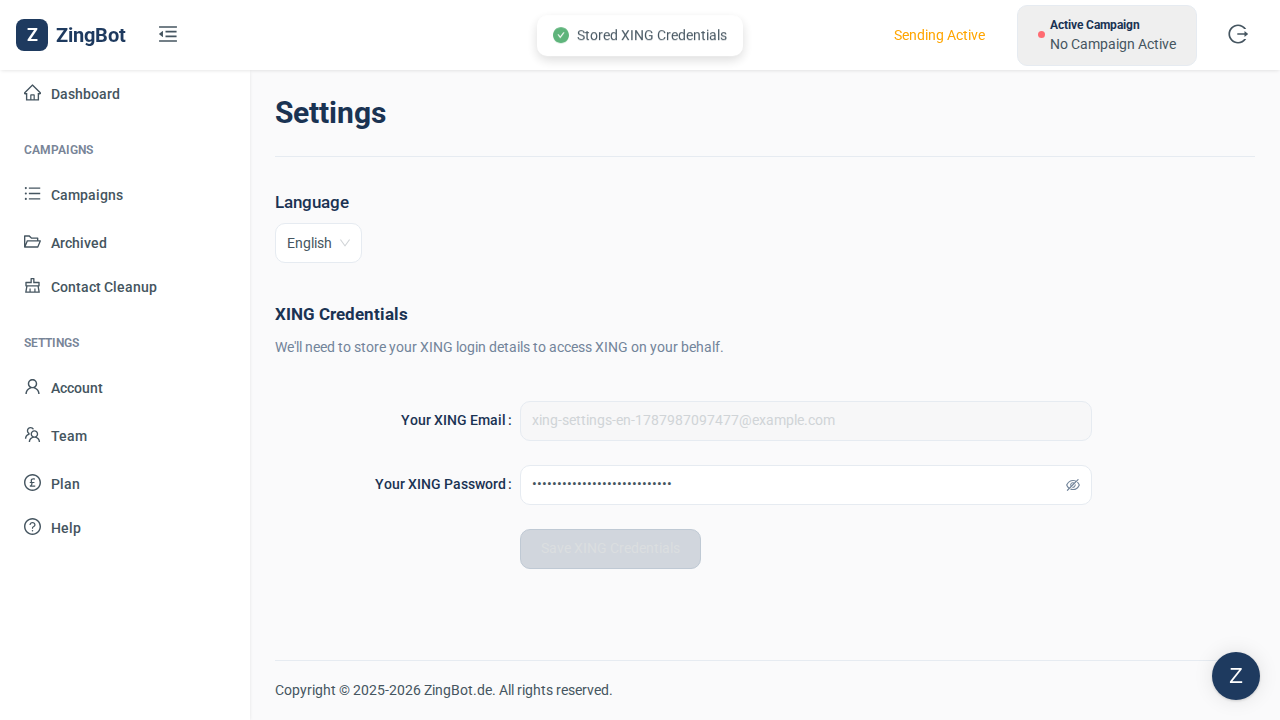
Saving stores the credentials right away and ZingBot confirms it on the page. Nothing is verified yet — that happens the next time ZingBot signs in to XING on your behalf.
Let ZingBot verify the connection
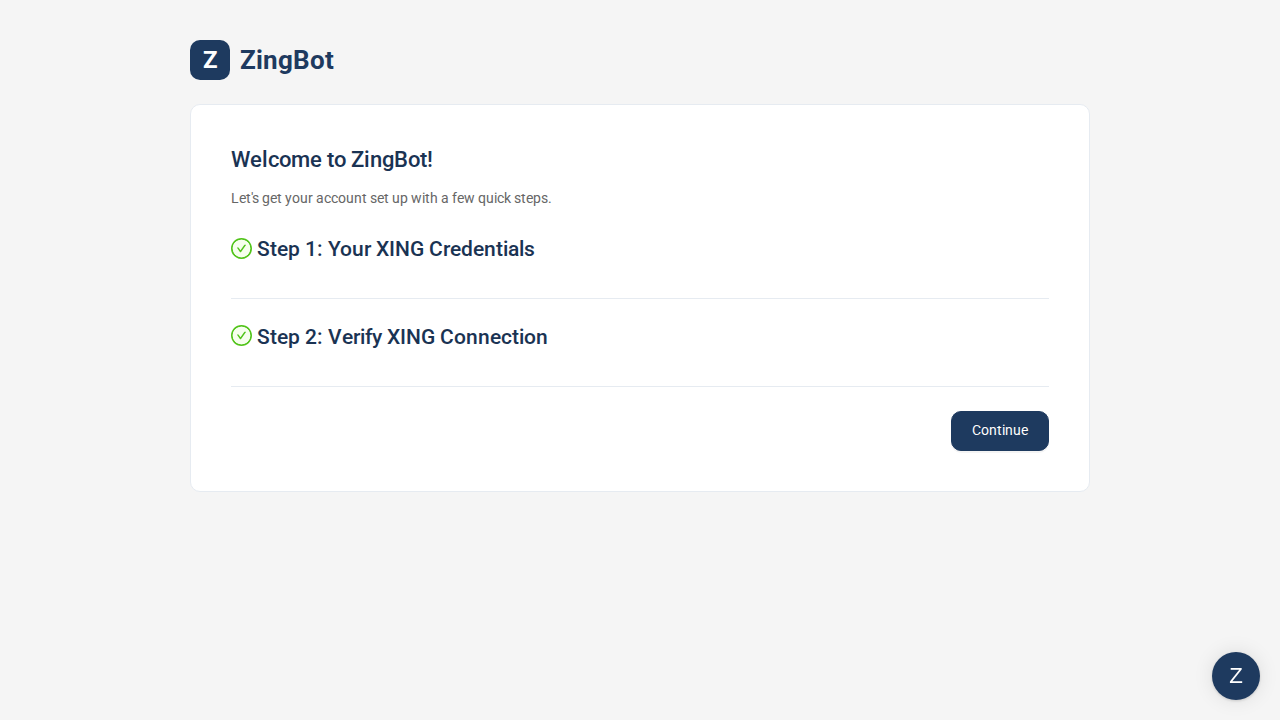
You do not have to wait for the next run: the Verify XING Connection screen makes ZingBot attempt a real sign-in against XING. It takes a few minutes — you can leave the page open. Once both steps are ticked off, ZingBot is working in your account again and your workflows continue. If the check fails, ZingBot takes you back to the form: verify the password directly on XING, and contact support if it persists.