
Open the campaigns list
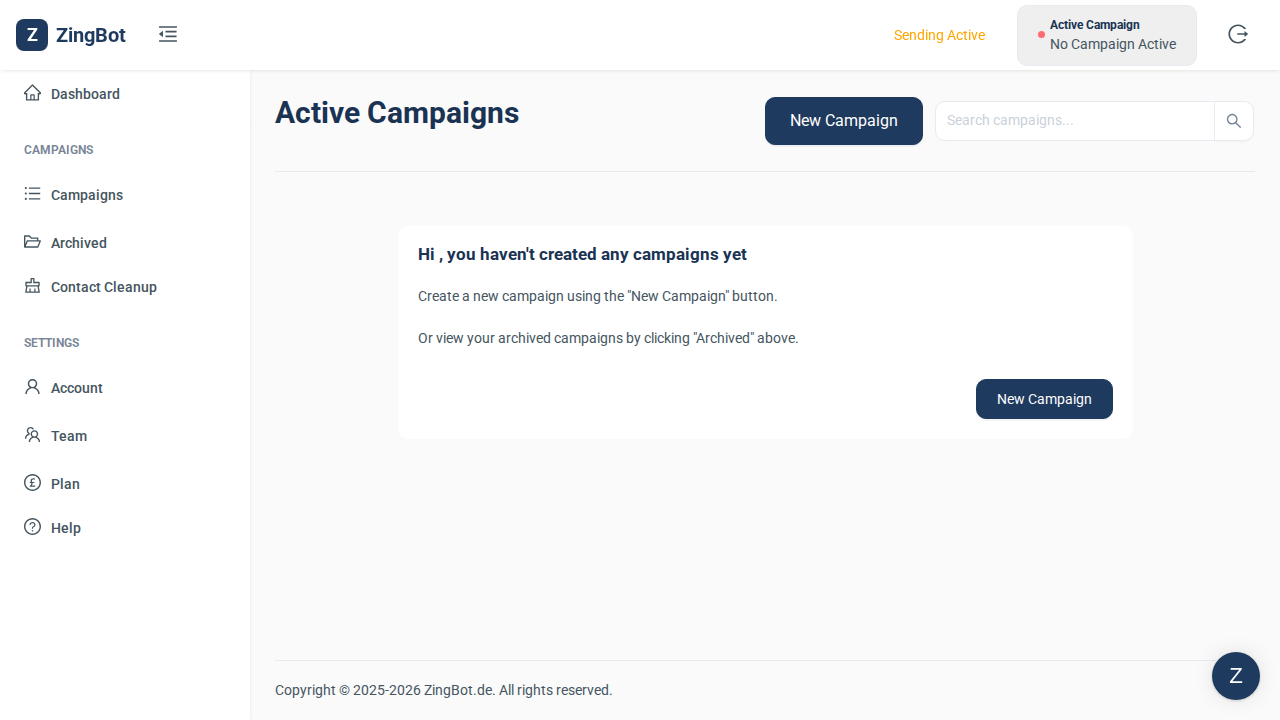
Campaigns holds all your active and archived campaigns. You create a new one from here.
Name the campaign
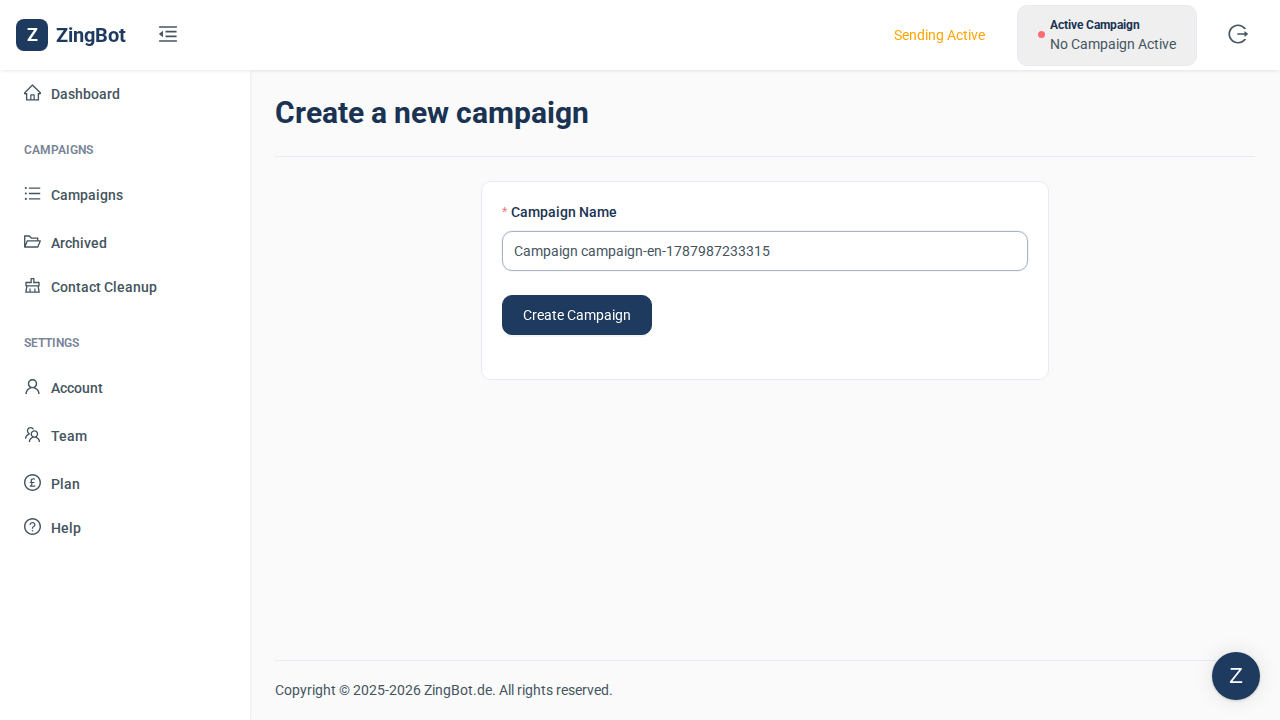
Give the campaign a name you will recognise later — the role you are sourcing for, for instance.
The campaign is created
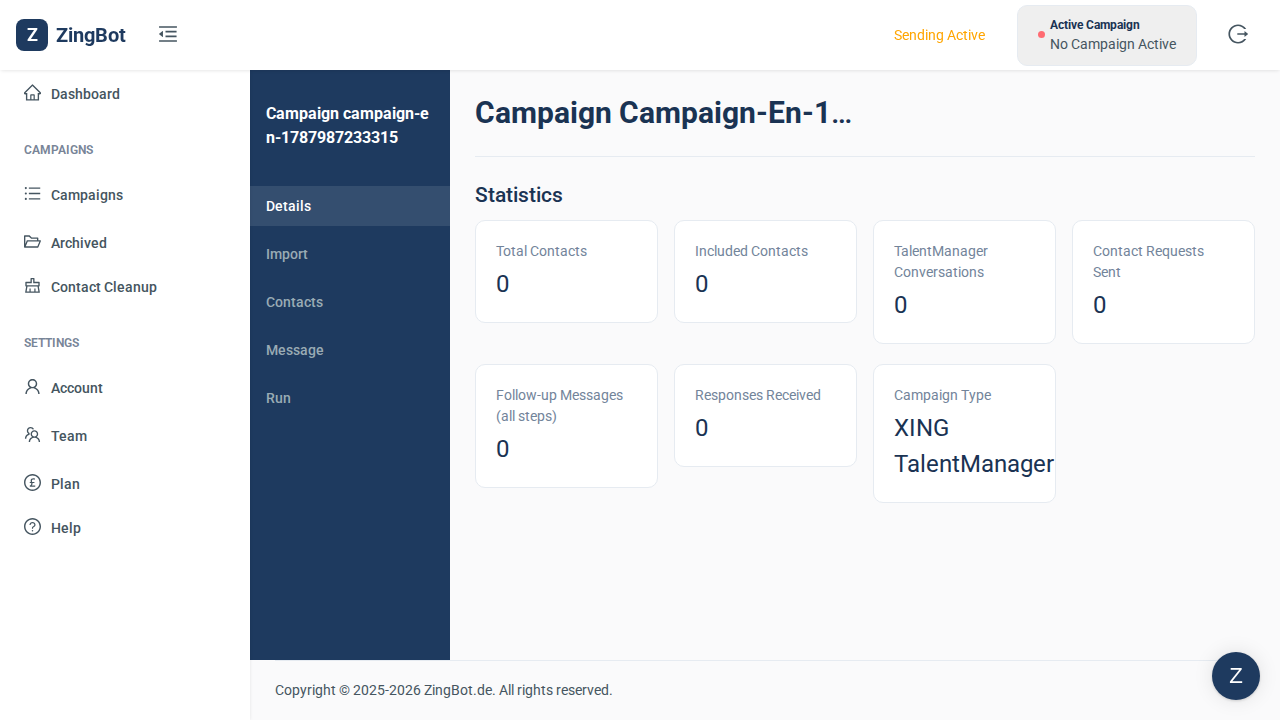
The campaign is saved. It has three parts: the message, the import of your contacts, and the run itself.
Choose the contact source
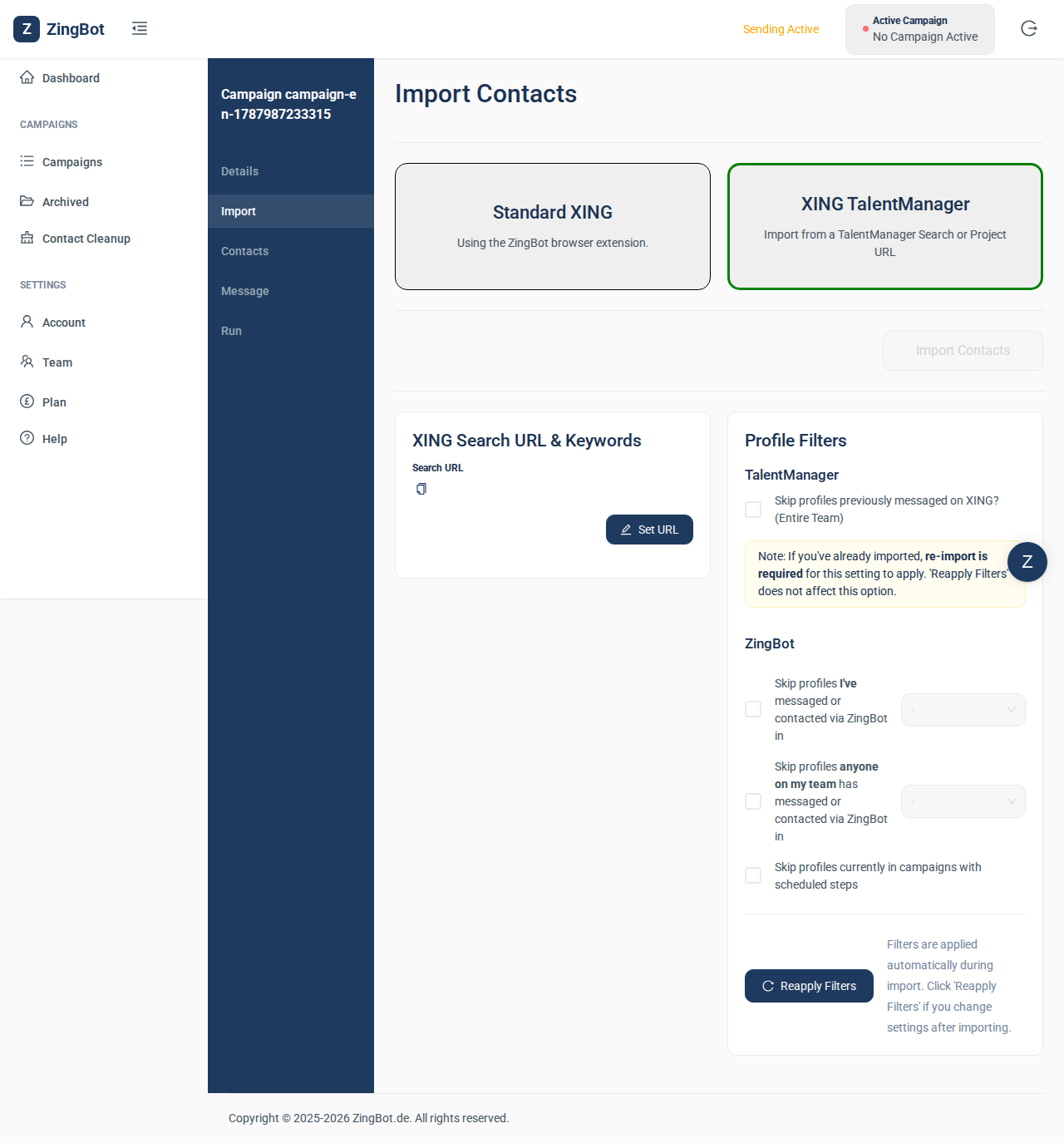
You can import from XING TalentManager — the recruiting path, which requires that you have Talent Manager — or use a standard XING search.
The source is selected
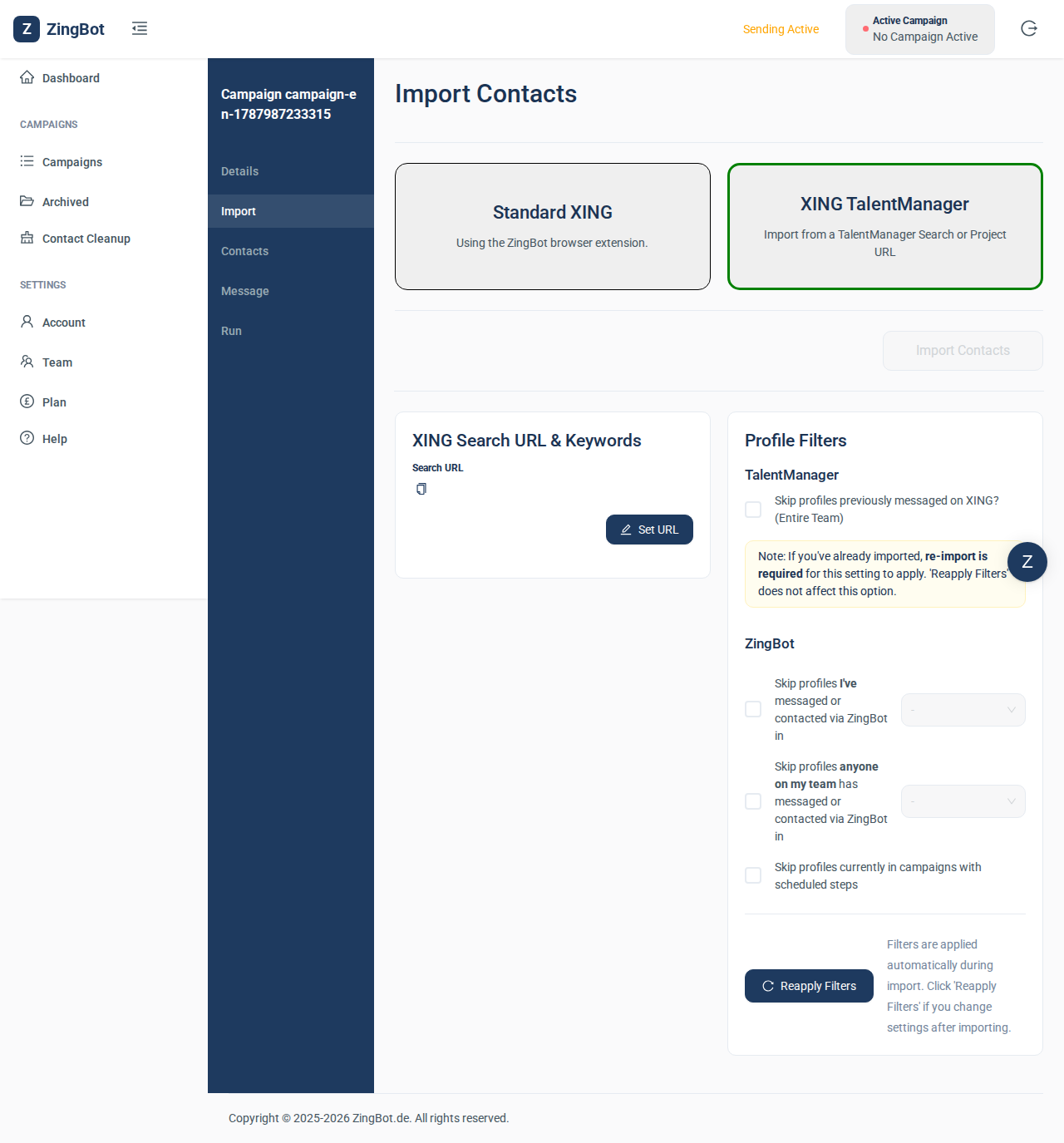
Once selected, you provide the URL of the search or project ZingBot should take candidates from.
Add the search URL
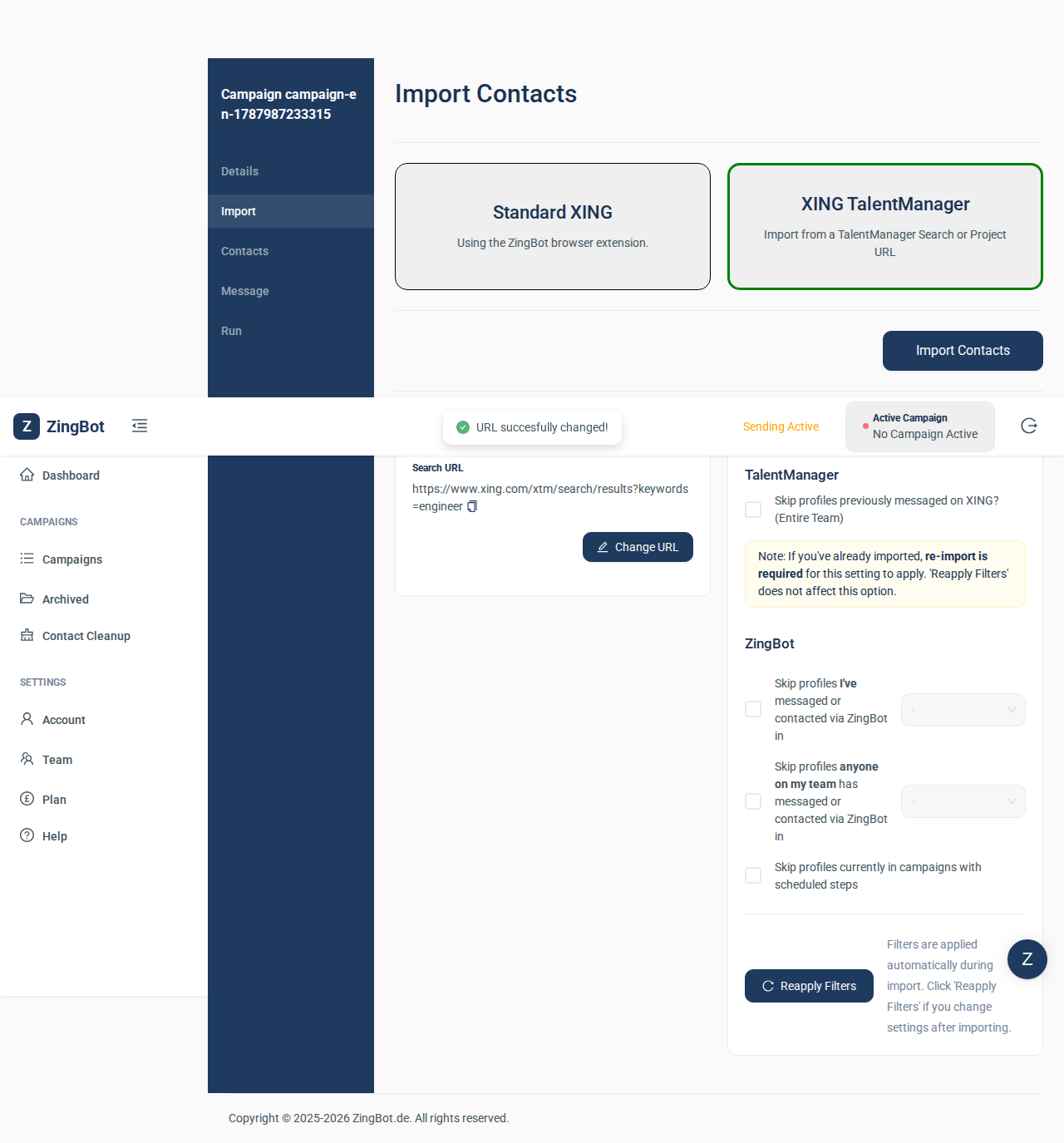
Open your filtered search in XING TalentManager and copy the address out of the browser’s address bar. ZingBot takes exactly the profiles that search returns. The import cannot start until the URL is saved.
Start the import
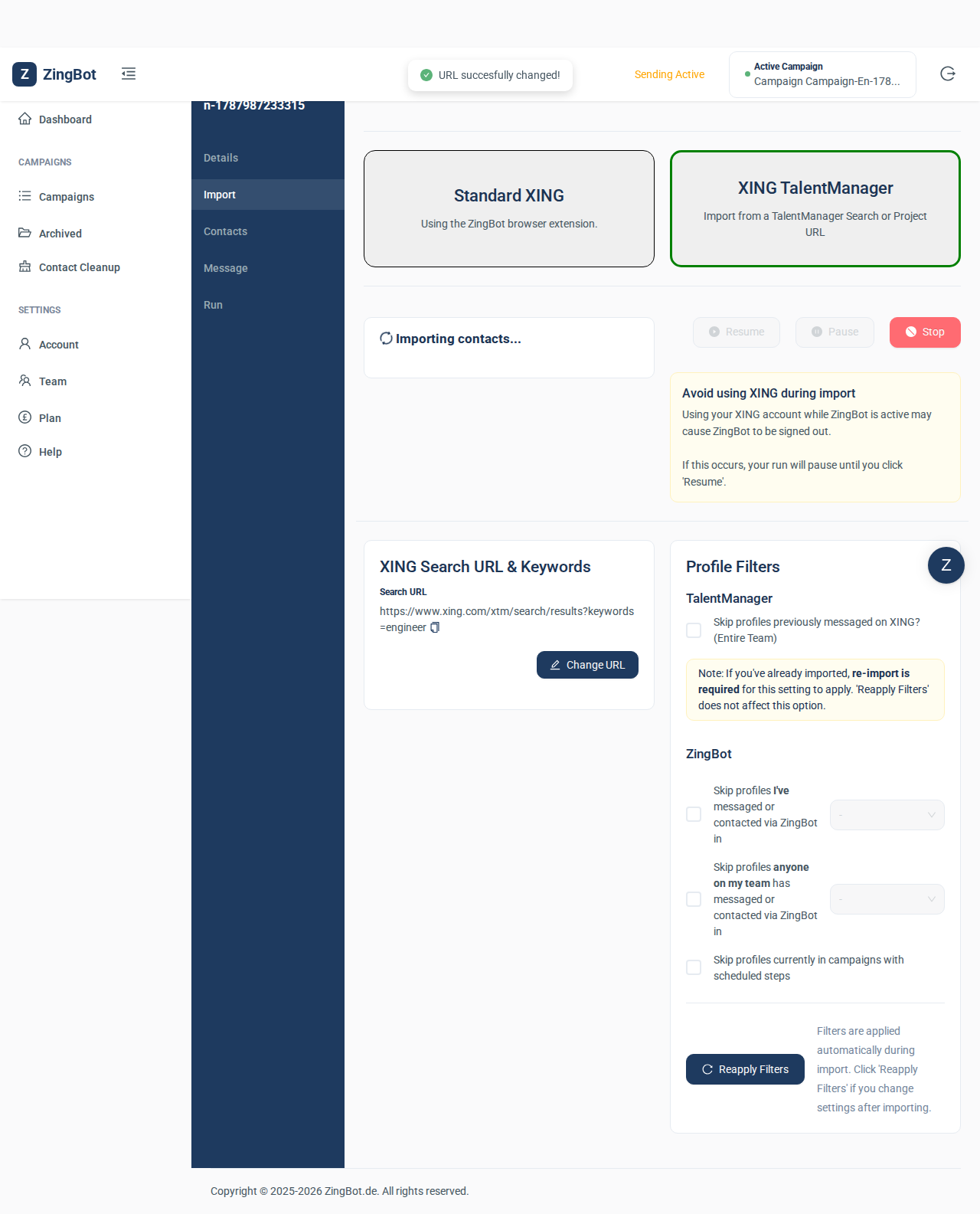
ZingBot now signs into XING and reads the result list. It runs on our servers and takes a few minutes depending on how large the search is. Avoid using XING yourself while it runs — it signs ZingBot out and pauses the job.
The contacts have been imported
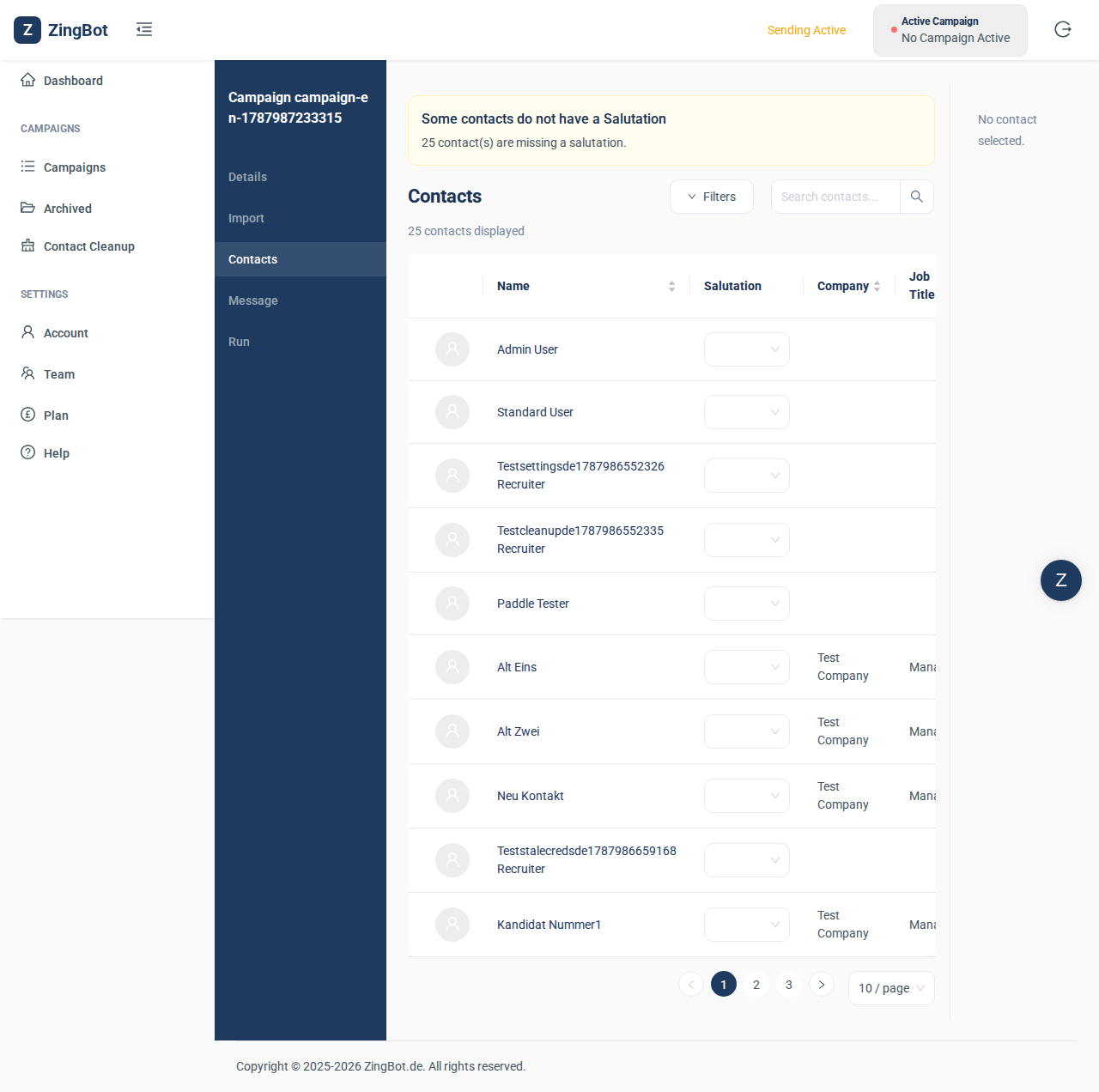
Contacts now lists every imported profile with its name, company and job title. This is where you exclude individual people before the campaign runs.
Write the message
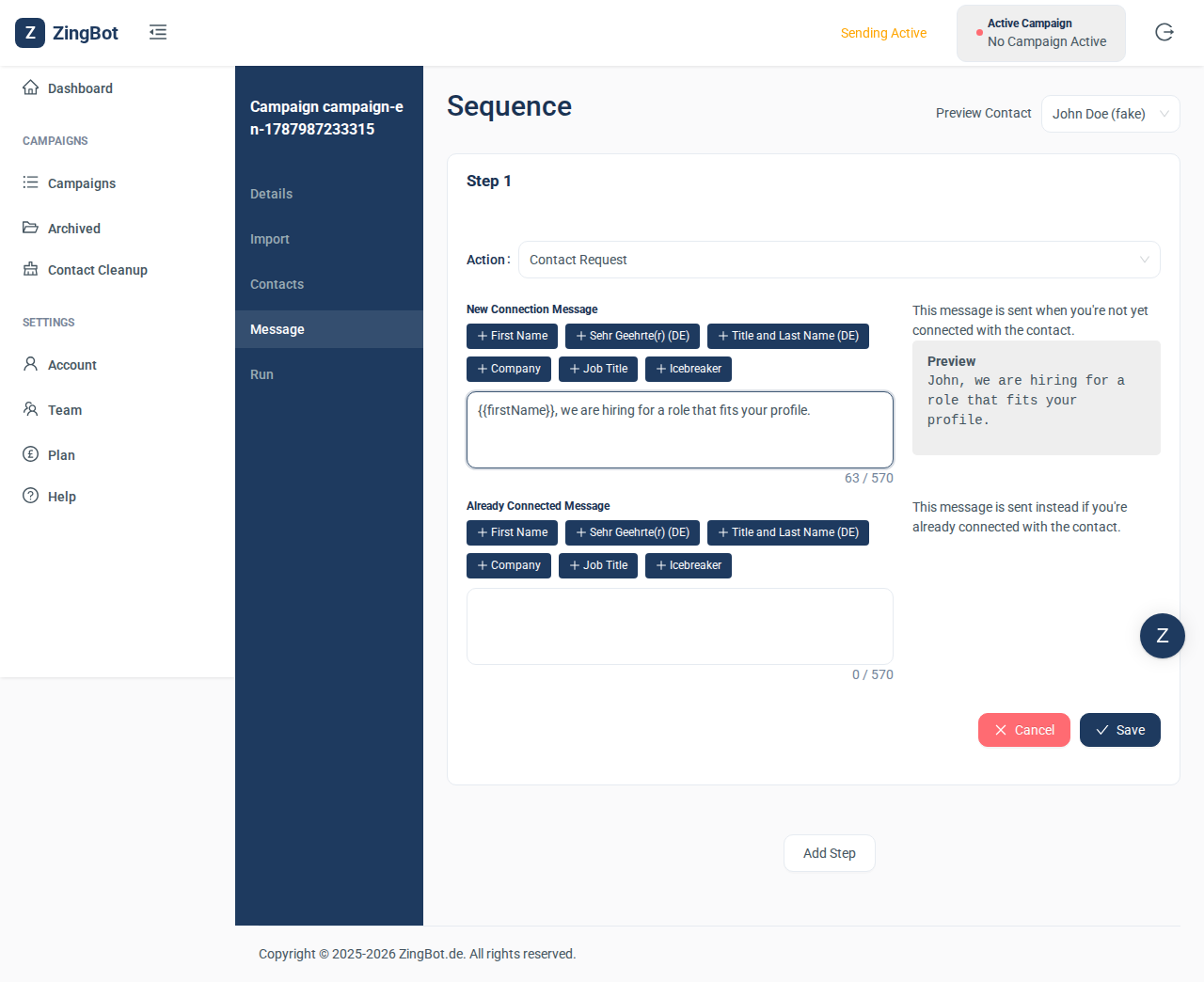
Step 1 of the sequence decides what ZingBot does first; a contact request is the default. The buttons above the text box insert variables such as the first name, so every message goes out personalised.
Start the campaign
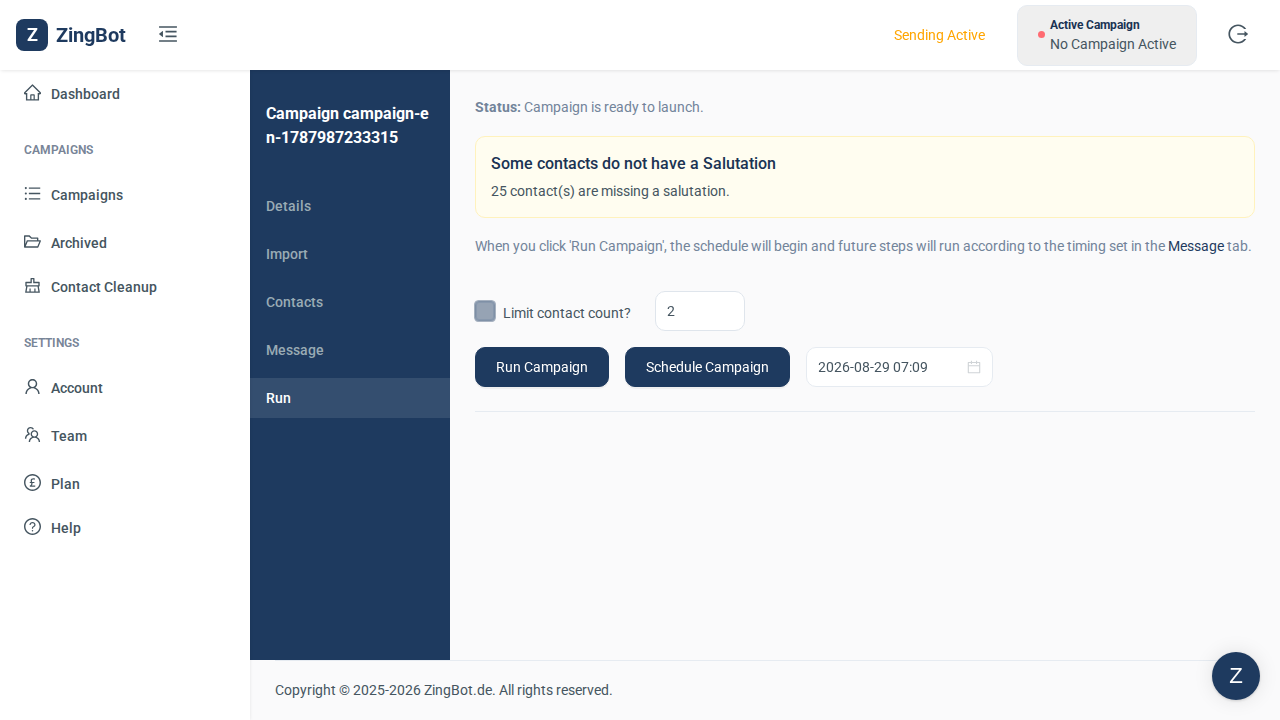
The status line tells you if anything is still missing: without a message, or without your XING account stored, the button stays disabled. For a first run it is worth capping the contact count — ZingBot then approaches only the first few profiles, so you can check the result before the whole list is contacted.
The campaign is running
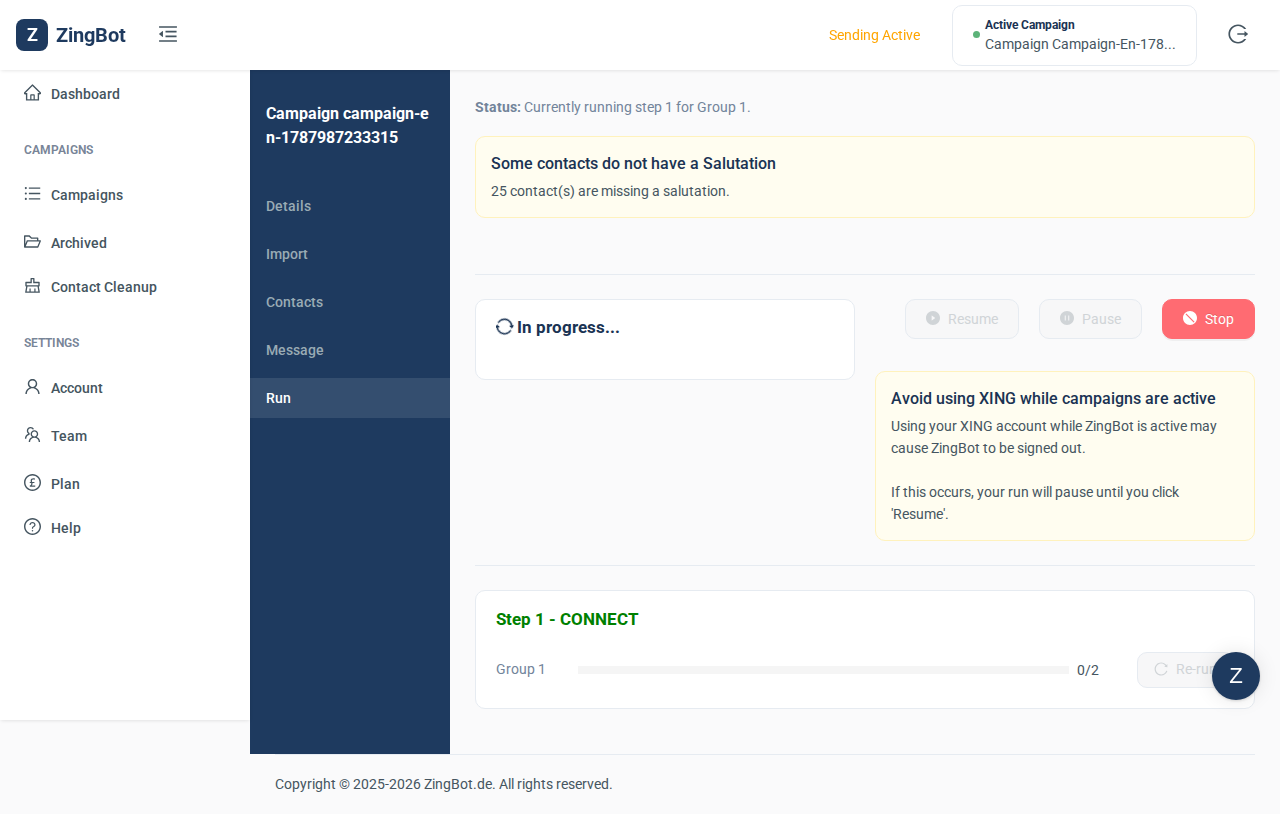
ZingBot works through the contacts one at a time and logs every step. You can close the page — the run happens on our servers, not in your browser.
Archive the campaign
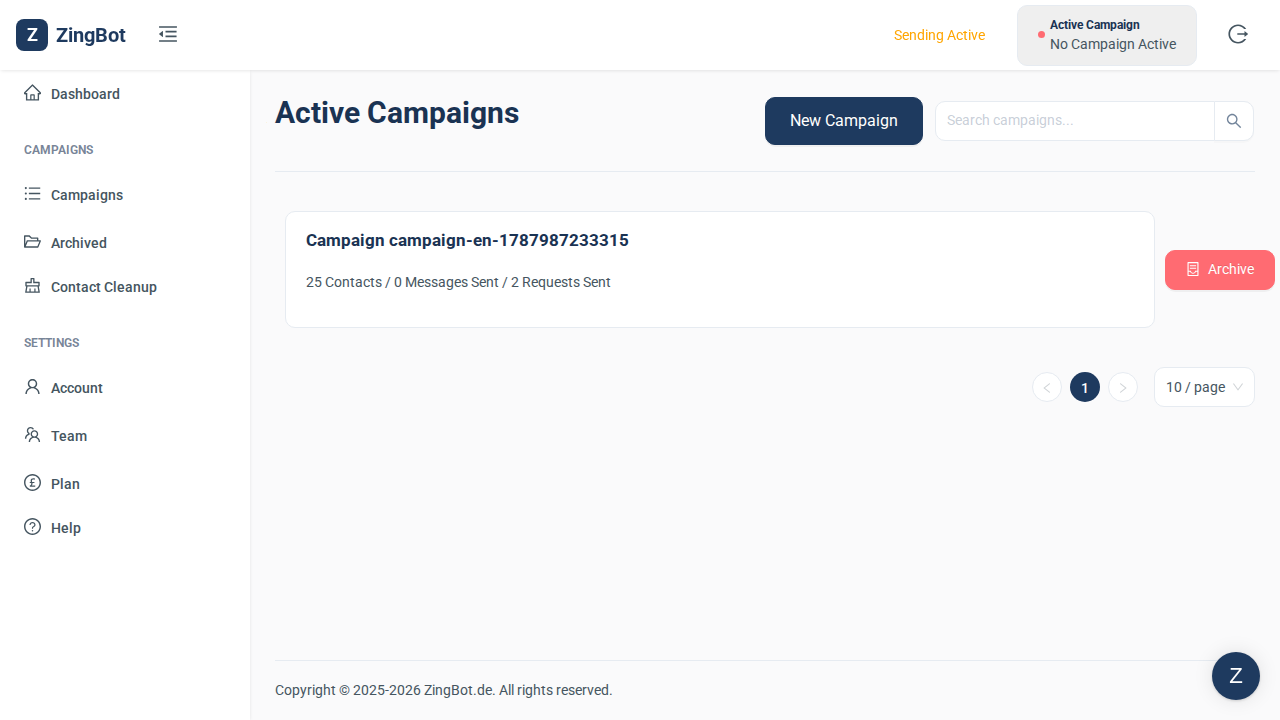
When a campaign is finished, Archive clears it out of the list. Nothing is lost: contacts and history stay, and you can reactivate it from the archive at any time.