
Create a campaign for the project
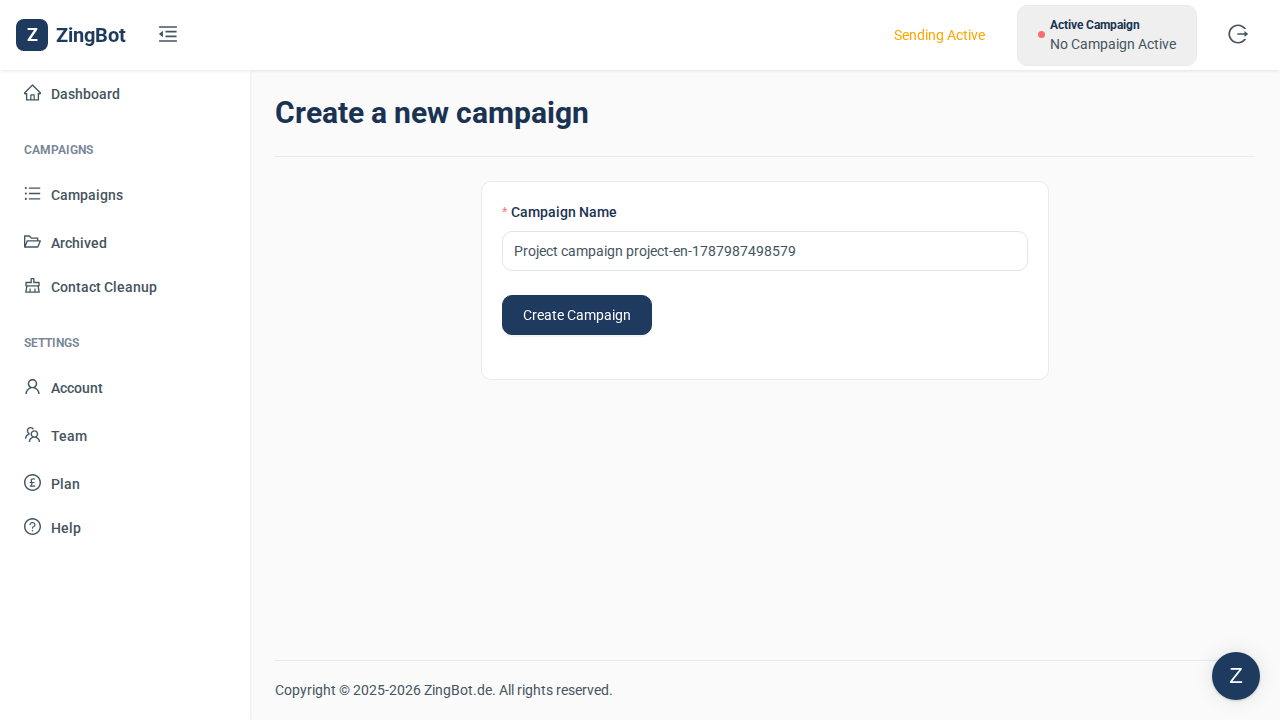
Every import belongs to a campaign. Create one and name it after the project, so the two stay easy to match up later.
Choose XING TalentManager as the source
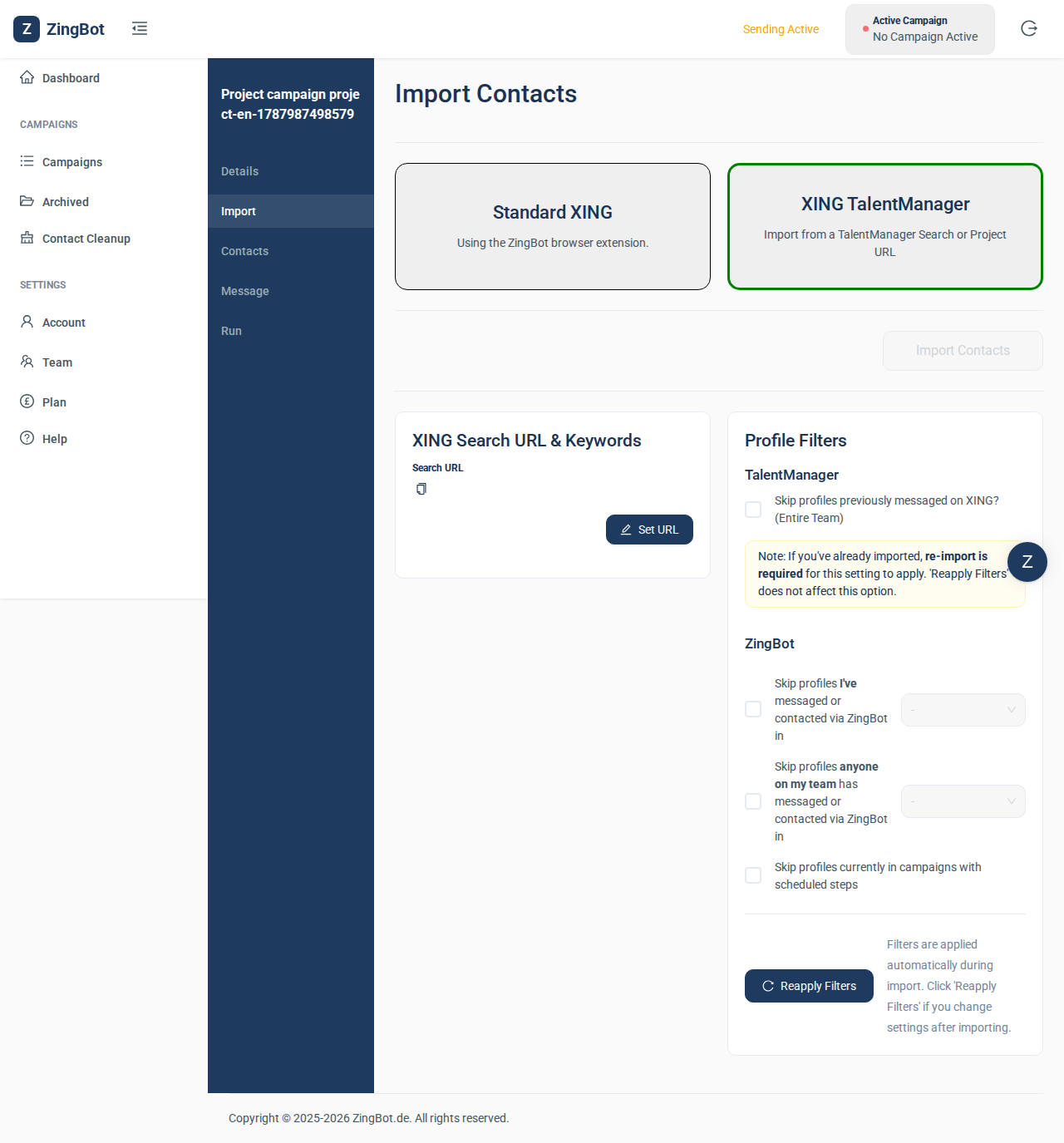
Projects only exist inside TalentManager, so pick that source. It requires that your XING account includes Talent Manager.
Enter the project URL
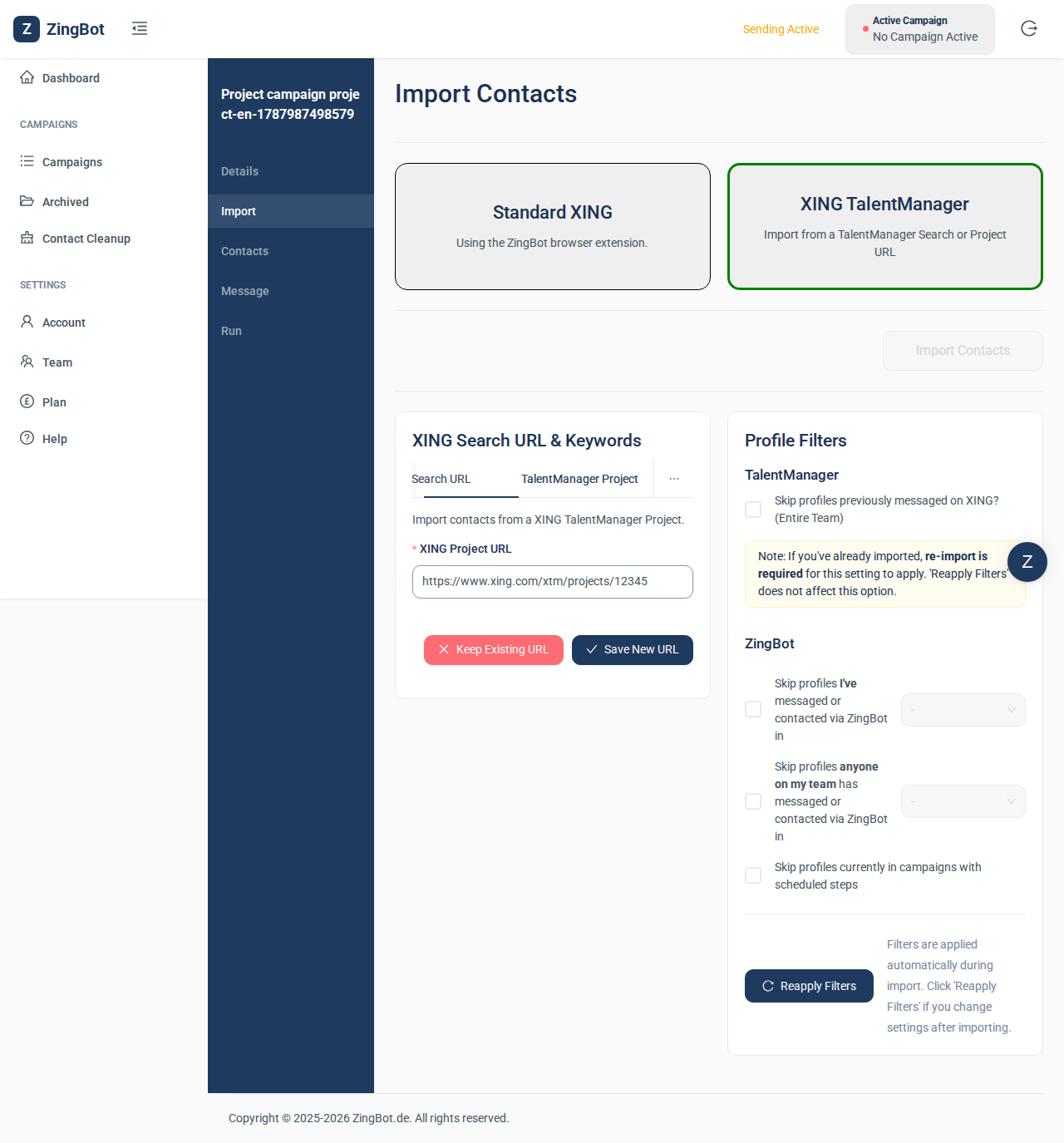
Set URL offers two tabs: a search or a project. For a project, open it in XING and copy the address out of the address bar.
The project URL is saved
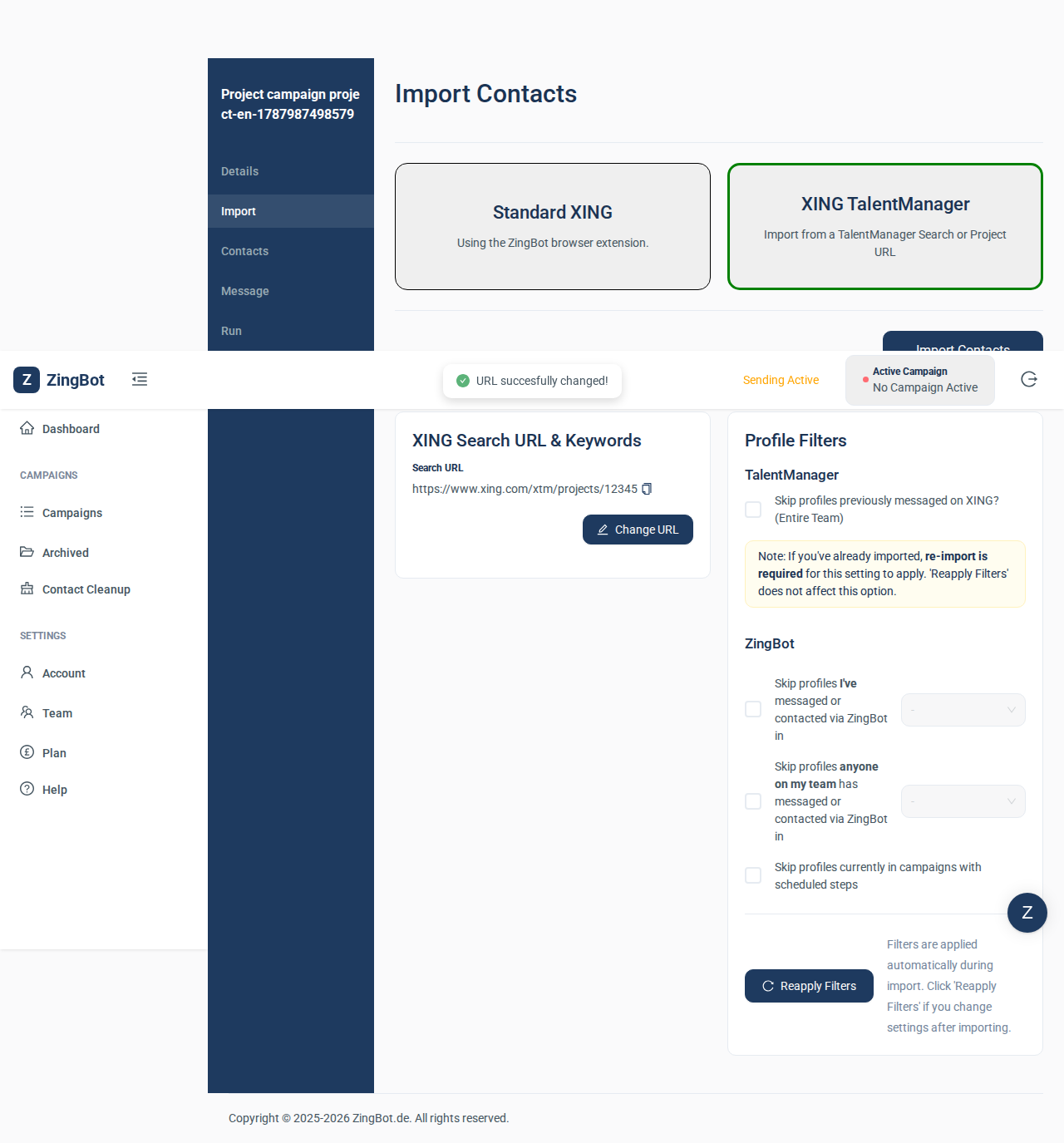
The campaign is now tied to the project, and the import button becomes active.
Start the import
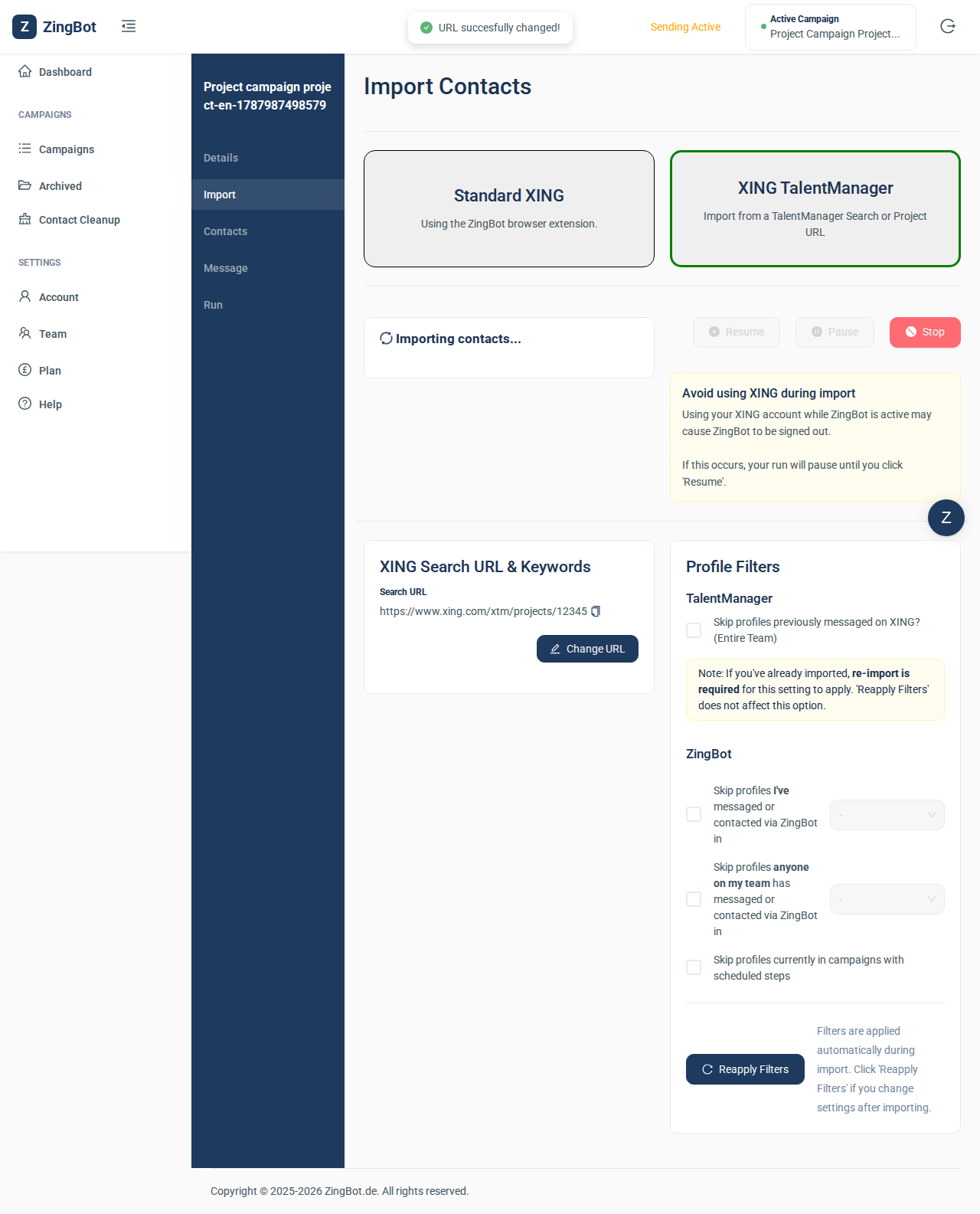
ZingBot signs into XING and takes the candidates from the project. It takes a few minutes; avoid using XING yourself while it runs.
The candidates from the project have arrived
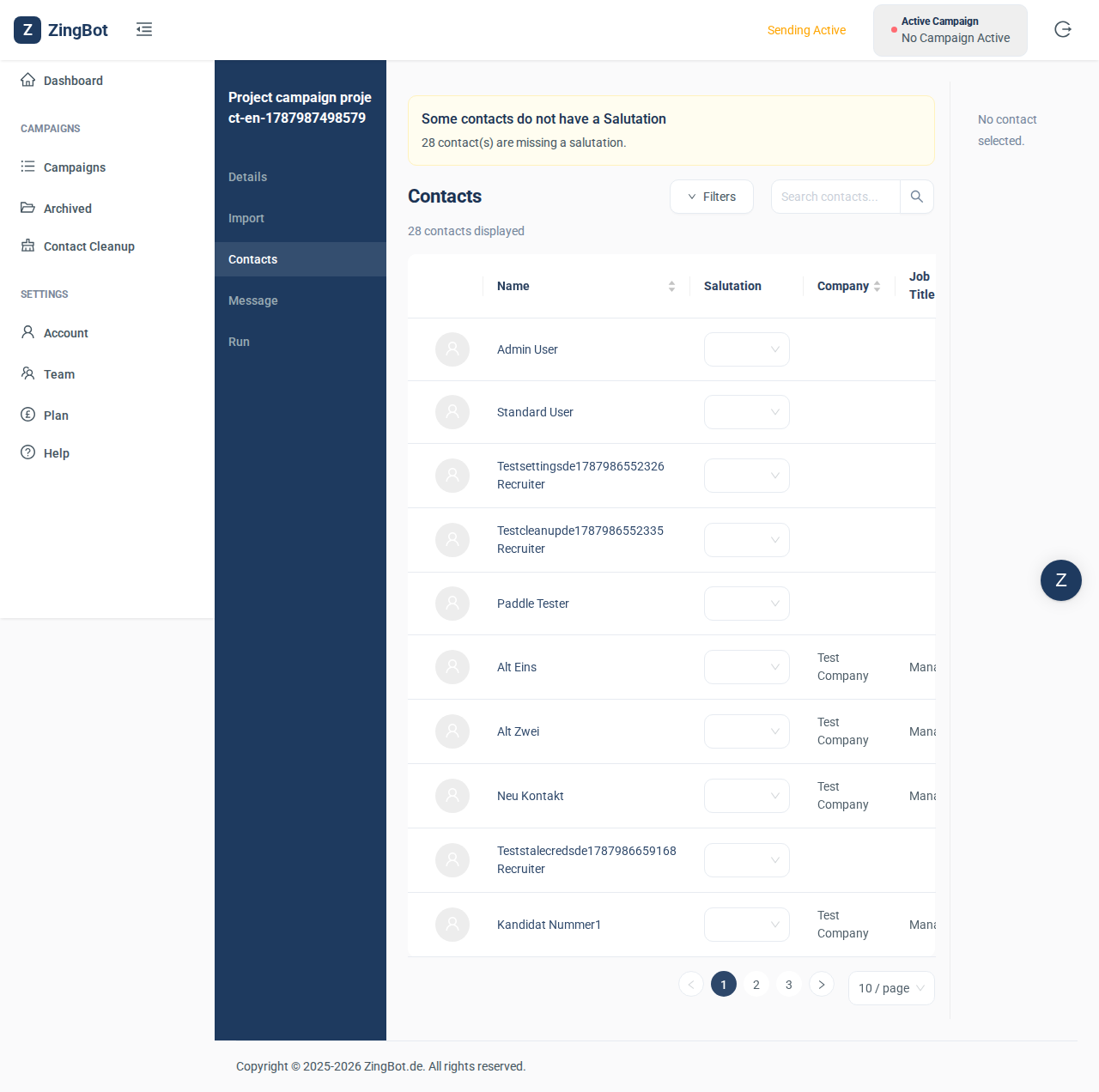
Every candidate in the project is now a contact on the campaign, with their name, company and job title.
Write the message to the candidates
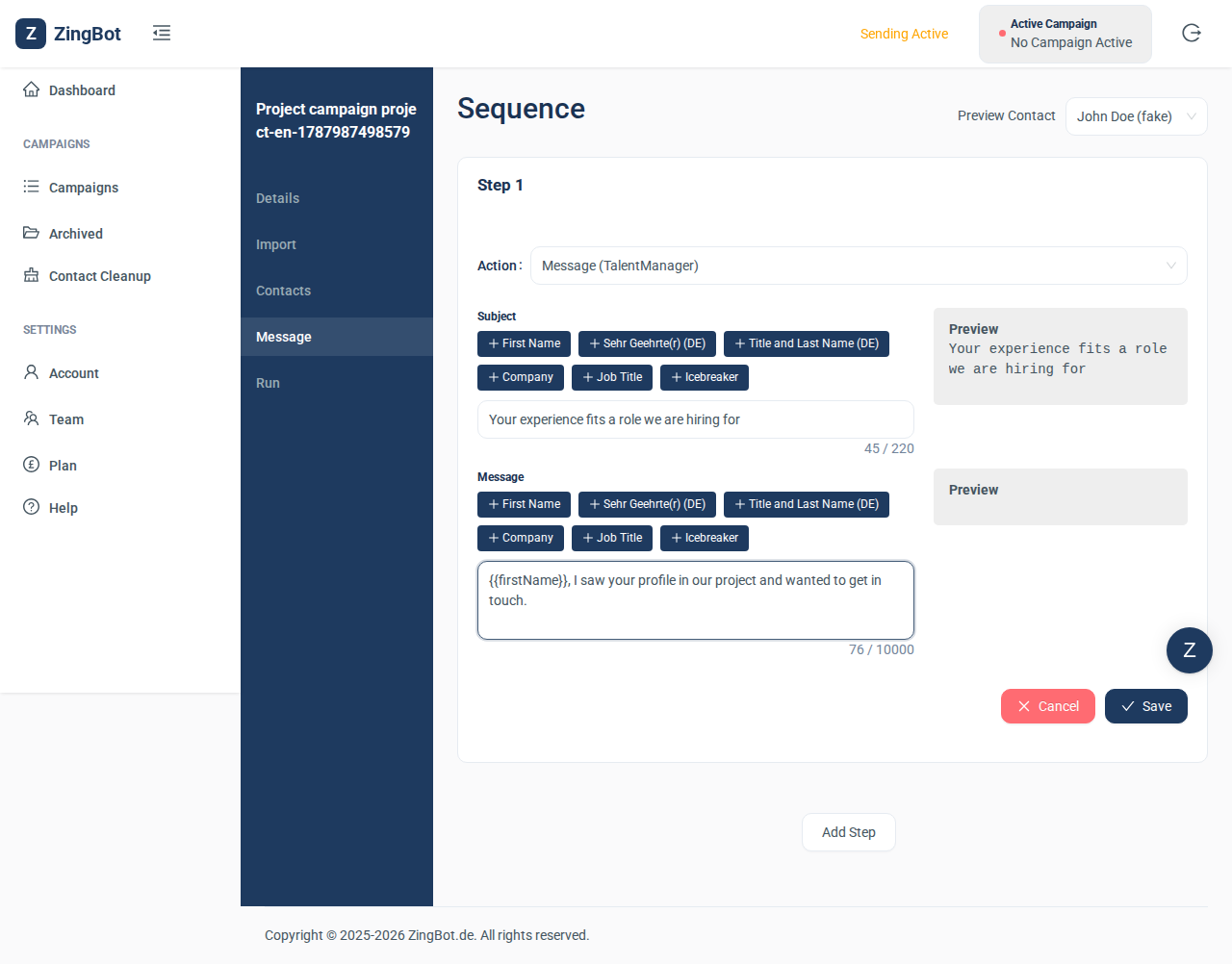
In a TalentManager campaign you can send a message directly instead of a contact request. It has a subject line, like an email. From there you run the campaign as described in Creating a campaign and importing contacts.